Animated Attachments
Sometimes, you may want to create animations involving attachments. For example, an underbarrel grenade launcher that opens up, and the character inserts a grenade.
It’s not possible to animate attachments directly, but there is still a method.
The trick is to use the Part Visibility feature in a clever way.
Since we can’t animate attachments directly, the only way is to copy the attachment model onto the gun model itself; then hide it when the attachment isn’t installed.
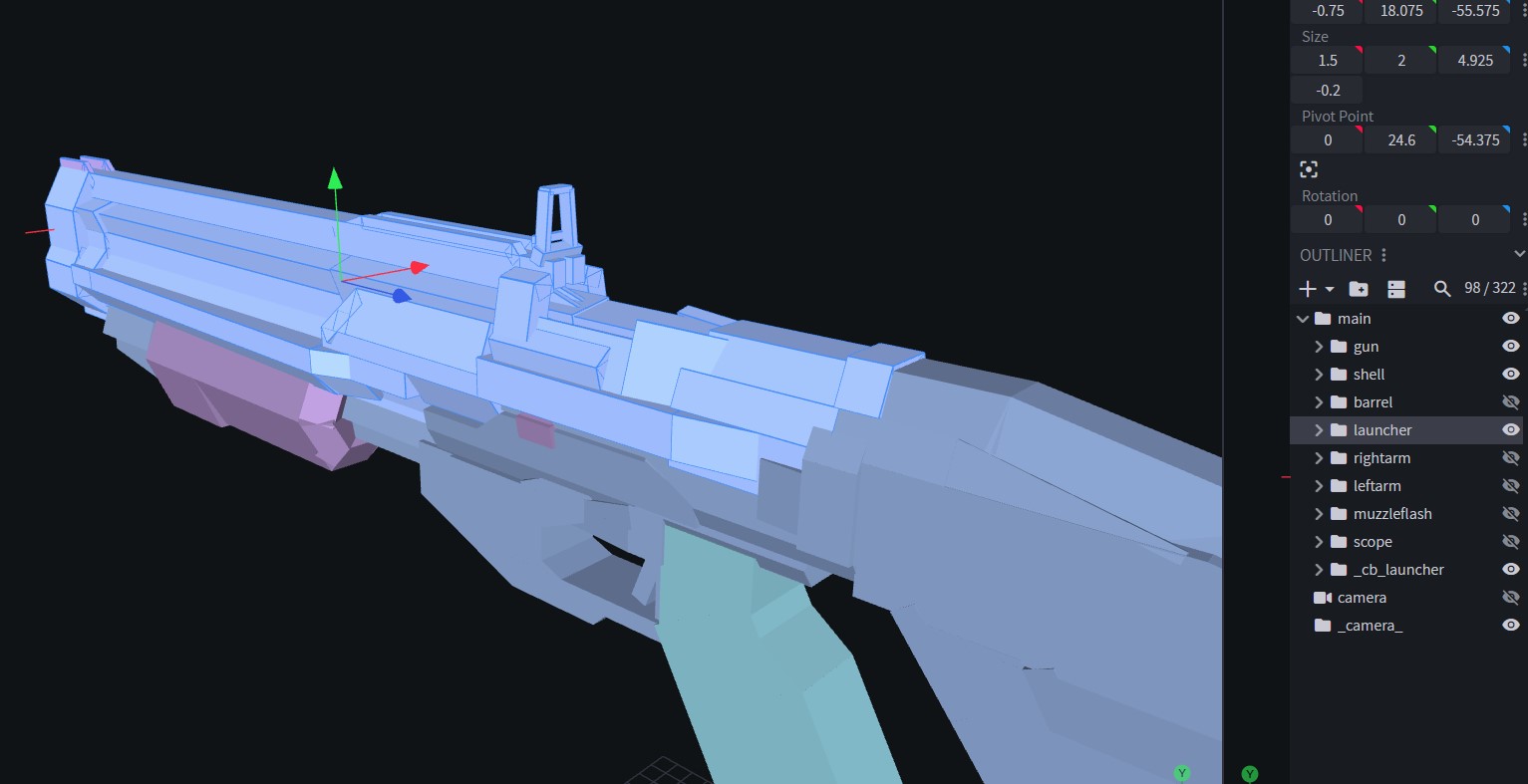
In this image, you can see that in the gun model itself, there’s a group that contains the launcher model. When this is the case, you can animate the launcher since you’re animating the gun itself.
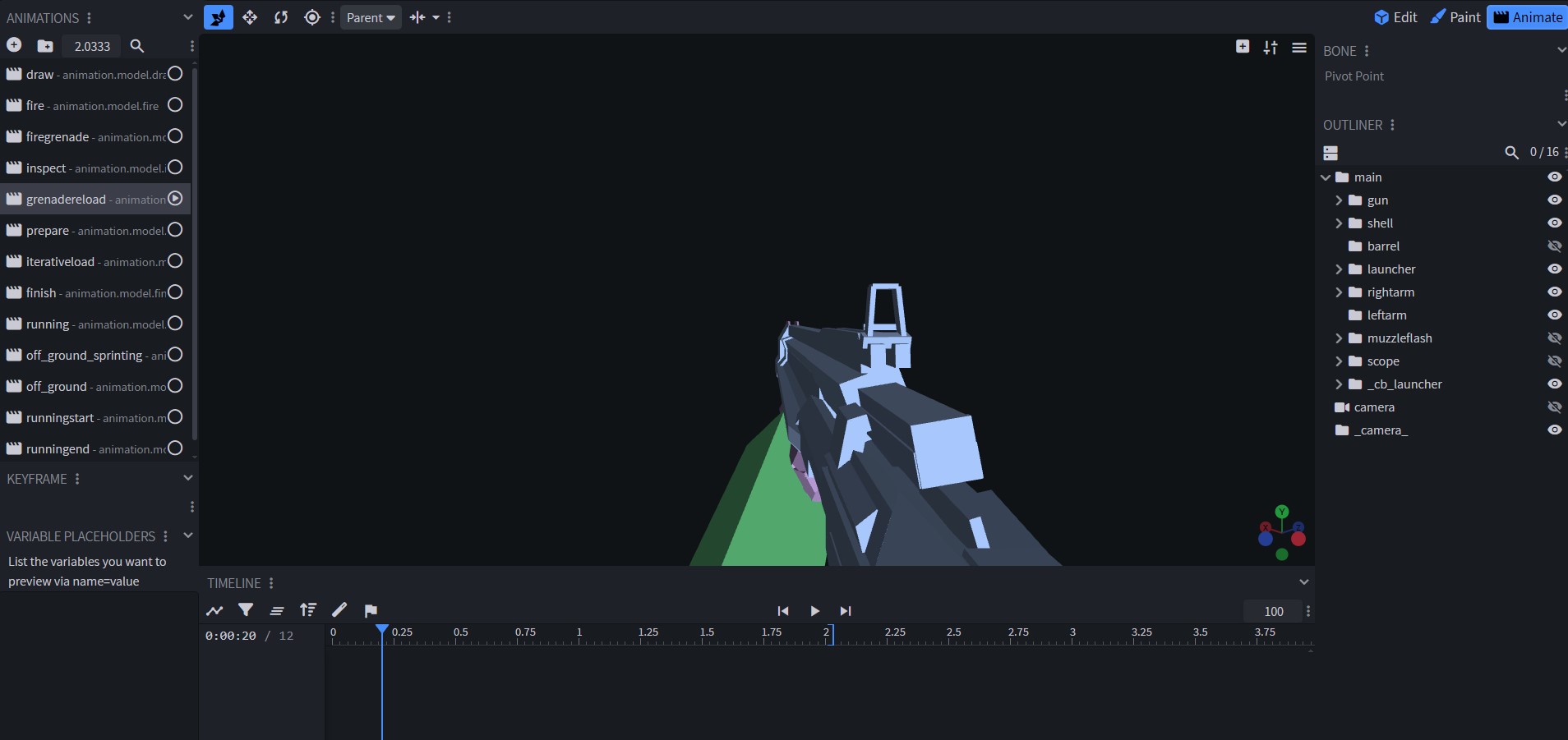
Then, in the gun json, you use the Part Visibility feature to show the launcher part when it has the launcher attachment installed:
{
      "type": "PartVisibility",
      "parts": [
        {
          "name": "launcher",
          "visible": true,
          "condition": {
            "allOf": [
              {
                "hasAttachment": "doom_launcher"
              },
              {
                "isGunInHands": true
              }
            ]
          }
        },
        {
          "name": "barrel",
          "visible": false,
          "condition": {
            "hasAttachment": "doom_launcher"
          }
        }
      ]
    }
Next step:
Because the launcher is in both the attachment, which is on the gun, and also in the gun model itself, what can happen is the launcher model actually duplicates. It’s not ideal since it can cause visual issues and it’s also more vertices for the game to render unecessarily (which can cause fps lag).
There are two fixes for this.
The simpler fix:
- Since attachments will be invisible if there isn’t a connector point on the gun for it, even if the attachment is installed on the gun, you can leave the connector out and be done with it. This way, the only launcher that’s rendering is the one you want: the one modeled as part of the gun.
The more complex fix:
- Now, if you tried to first fix, you may have noticed that the animation for putting on the attachment is gone. By default, Point Blank highlights installed attachments in green briefly for visual effect.
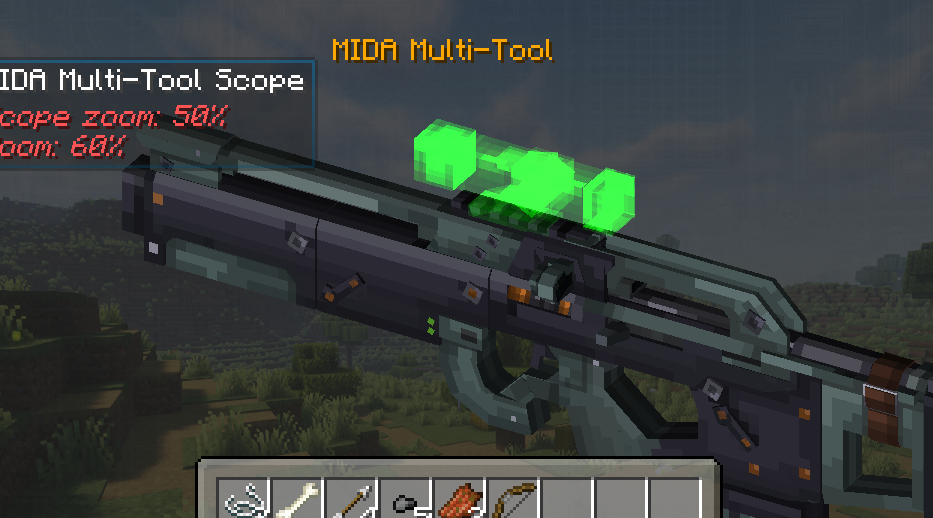
If the first fix is in place, since there’s no attachment rendering, there’s no green effect to render. It will simply pop into existence the gun version of the model. If you care to fix this, there’s an extra step you can take.
First, make sure you have the connector point on the attachment model itself. Next, enter the attachment json file and write in the Part Visibility feature:
{
  "name": "doom_launcher",
  "type": "Attachment",
  "category": "doomlauncher",
  "features": [
    {
      "type": "Sound",
      "fireSound": "doom_gl_shoot",
      "condition": {
        "selectedFireMode": "grenade"
      }
    },
    {
      "type": "PartVisibility",
      "parts": [
        {
          "name": "launchermain",
          "visible": true,
          "condition": {
            "isGunInHands": false
          }
        }
      ]
    },
    {
      "type": "Reload",
      "maxAmmoPerReloadIteration": 3,
      "condition": {
        "selectedFireMode": "grenade"
      }
    },
    {
      "type": "FireMode",
      "fireModes": [
        {
          "name": "grenade",
          "displayName": "label.pointblank.fireMode.grenade",
          "ammo": "grenade40mm",
          "maxAmmoCapacity": 3,
          "type": "SINGLE",
          "rpm": 90,
          "animationName": "animation.model.firegrenade",
          "shakeRecoilAmplitude": 2.0,
          "shakeRecoilSpeed": 2.0,
          "shakeRecoilDuration": 350
        }
      ]
    }
  ]
}
In Part Visibility, invoke the name of the group containing the model, and render it true if the gun isn’t in the player’s hands.
Now, it’ll only render the attachment in the attachment menu (or if the gun is dropped, otherwise not in the player’s hands). Since it’s not rendering in your hands, the model doesn’t duplicate.
There’s one extra thing to do:
- In the attachment menu, both versions are being rendered still, which can cause performance issues, and the green affect will also look different from how it’s supposed to. This is when you can enter the gun json again and write in a similar condition for the showing launcher part:
{
          "name": "launcher",
          "visible": true,
          "condition": {
            "allOf": [
              {
                "hasAttachment": "doom_launcher"
              },
              {
                "isGunInHands": true
              }
            ]
          }
        }
This way, the gun version of the attachment will only render if both conditions are true: it has the attachment, and if it’s in your hands. In the attachment menu, it won’t render.
Alternate Reload Animations
Now that you have the hard part out of the way, if you want to write in alternate reload animations if the player has the attachment’s custom firemode enabled, you can write in code for a new animation under phasedReloads, and adjust the conditions of the default reloads:
Doom Combat Shotgun, with a launcher attachment, example:
"phasedReloads": [
    {
      "phase": "PREPARING",
      "condition": {
        "unselectedFireMode": "grenade"
      },
      "duration": 470,
      "animation": "animation.model.prepare"
    },
    {
      "phase": "RELOADING",
      "condition": {
        "unselectedFireMode": "grenade"
      },
      "duration": 480,
      "animation": "animation.model.iterativeload"
    },
    {
      "phase": "COMPLETETING",
      "condition": {
        "unselectedFireMode": "grenade"
      },
      "duration": 1280,
      "animation": "animation.model.finish"
    },
    {
      "phase": "RELOADING",
      "condition": {
        "selectedFireMode": "grenade"
      },
      "duration": 1130,
      "animation": "animation.model.grenadereload"
    }
  ]
Here, we have a new reload animation for the grenade launcher attachment, if the right firemode is selected; and the other reloads have a new condition: if the new firemode is unselected.