Glowing Parts
You can create glowing parts on a gun. They can either be simple cubes that glow in the dark, or can even be animated.
To create glowing parts, you first have to do some work in Blockbench.
In Blockbench, you need groups with cubes inside that you’ll want to be glowing. Image example:
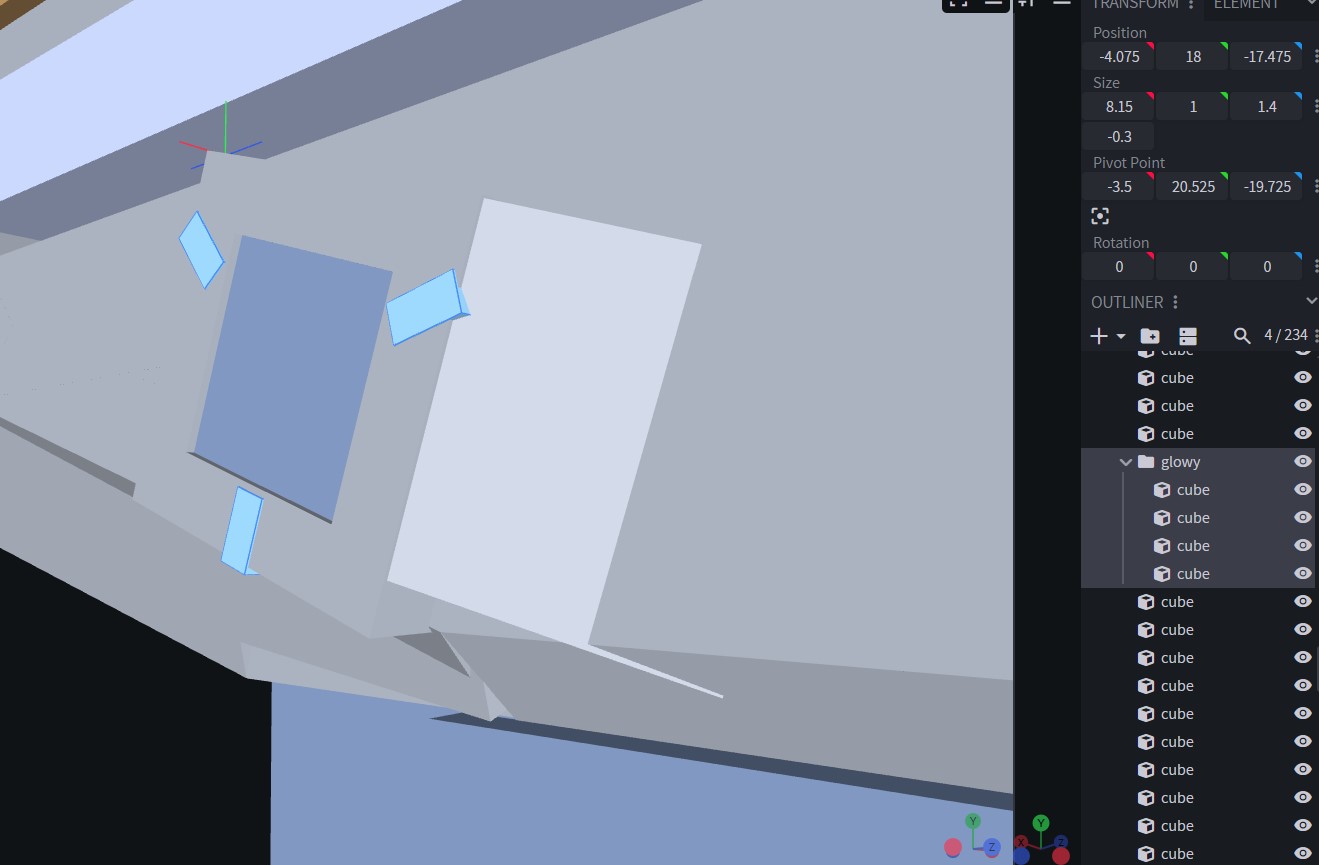
You can name the group whatever you like. For clarity, they’re usually called glowy. If there’s more than one group, they might be called glowy1, glowy2, glowy3 etc..
Once your work in Blockbench is done, you need to do some gun json work.
In the gun json, you don’t need to add too much. Notice "glowingParts":
{
  "name": "destiny_surosregime",
  "type": "Gun",
  "maxAmmoCapacity": 33,
  "compatibleAmmo": [
    "ammocreative",
    "destiny_primaryammo"
  ],
  "damage": 5,
  "fireSound": "destiny_surosregime",
  "fireModes": [
    "AUTOMATIC"
  ],
  "rpm": 600,
  "drawCooldownDuration": 630,
  "gunRecoilInitialAmplitude": 0.1,
  "shakeRecoilAmplitude": 0.35,
  "shakeRecoilSpeed": 2,
  "viewRecoilAmplitude": 1,
  "sustainedRecoil": {
  },
  "glowingParts": [
    {
      "name": "glowy"
    }
  ],
  "features": [
  ],
  "phasedReloads": [
  ],
  "effects": [
  ],
  "idleAnimations": [
  ],
  "fireAnimations": [
  ],
  "inspectAnimations": [
  ]
}
And that’s it.
If we have more glowing parts, we might write:
"glowingParts": [
    {
      "name": "glowy"
    },
    {
      "name": "glowy2"
    },
    {
      "name": "glowy3"
    }
  ]
Aside from making certain cubes glow, you can also create custom animated effects that glow.
To achieve this, the work in Blockbench is similar:
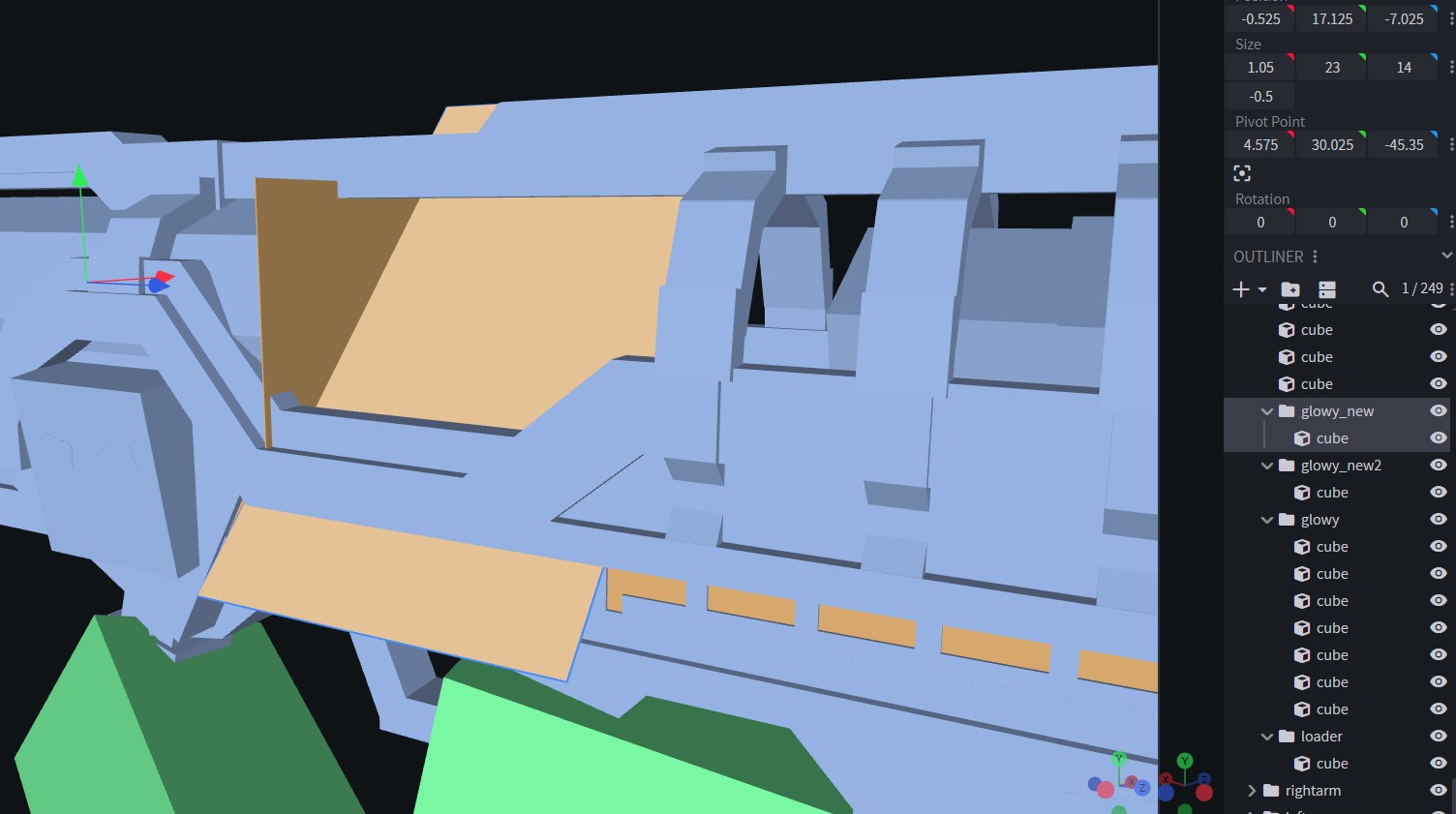
In this example image, there are 3 glowing parts: glowy, glowy_new, and glowy_new2. Glowy_new and glowy_new2 are the two big flat planes, on which it’s easy to play animated glowing effects. Glowy is the regular glowing cubes.
To make animated sprites, the work in the gun json is expanded a bit:
"glowingParts": [
    {
      "name": "glowy"
    },
    {
      "name": "glowy_new",
      "texture": "textures/effect/doom_firesprite.png",
      "direction": "west",
      "sprites": {
        "type": "loop",
        "rows": 5,
        "columns": 5,
        "fps": 30
      }
    },
    {
      "name": "glowy_new2",
      "texture": "textures/effect/doom_fire2nd.png",
      "direction": "north",
      "sprites": {
        "type": "loop",
        "rows": 5,
        "columns": 5,
        "fps": 30
      }
    }
  ]
The first block, glowy, is using familiar code.
The second block is glowy_new, which has its own texture (a sprite sheet png), direction, and sprites.
The sprite sheet texture should be located in textures/effect.
"direction" is what way the animated sprite sheet is playing, north, south, west, or east. Tinker with each direction for your desired result.
"sprites" is where the work happens to make the sprite sheet work. If you’ve worked with effects before in Point Blank, this should look familiar.
Each animated effect here is set to loop type, which means it loops infinitely (make sure the texture sprite sheet loops properly); they have 5 rows and 5 columns, and they play at 30 fps.
Keep in mind to make these animated glowing effects work, you do not need to create new json files for them like you’d have to for muzzle flashes, tracers, and other animated effects.